PSBI + (hi)bob
Set up Bob for background screening
Configure the Bob connection, create the required employee fields, map Job Families, and validate one complete background-screening request.
Overview
Integration details
| Property | Value |
|---|---|
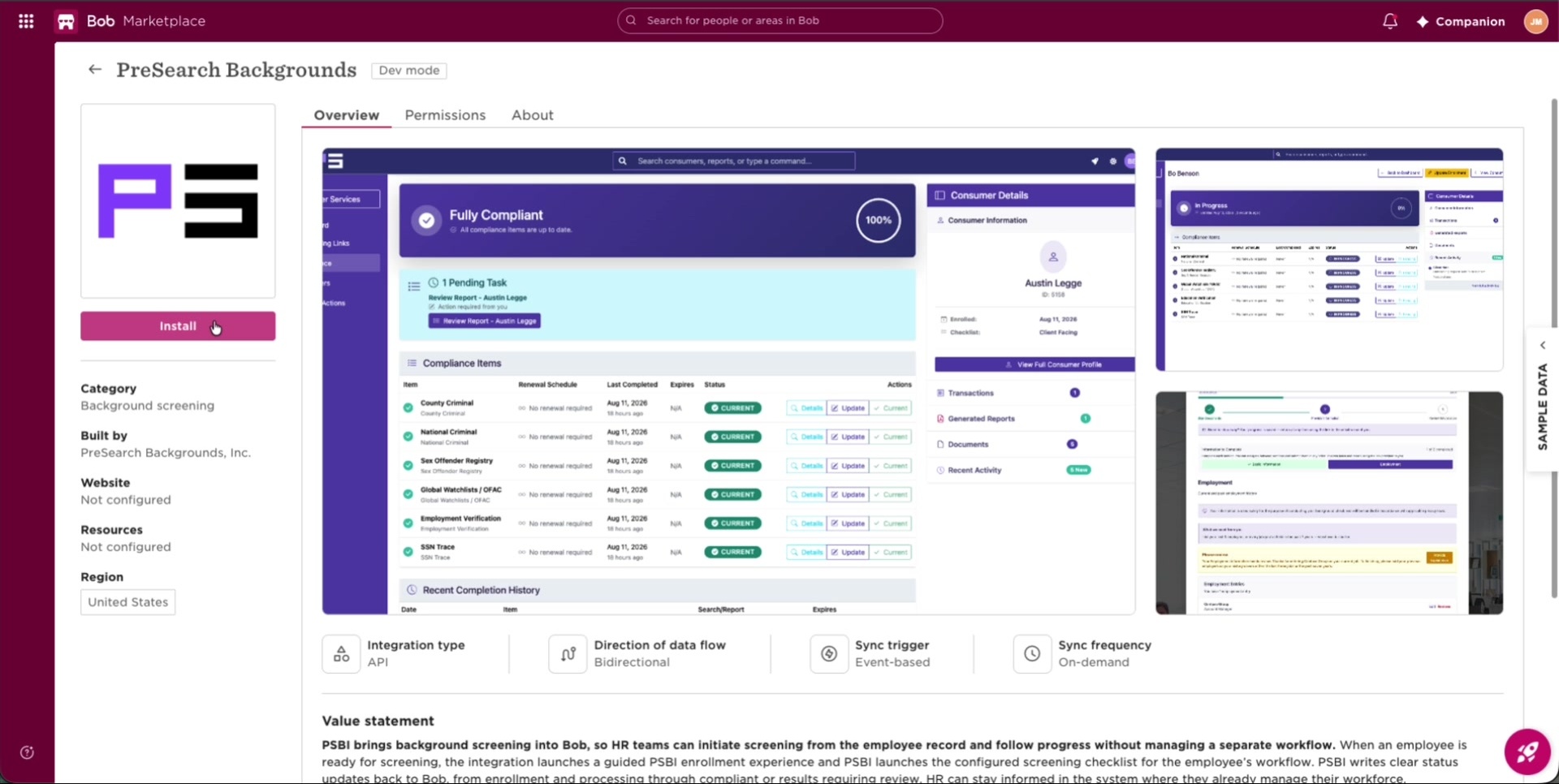
| Integration type | API | Bidirectional |
| Authentication | OAuth 2.0, authorized once by a Bob company administrator |
| Sync frequency | On demand |
| Fields read | Employee identity and contact details, Job Family |
| Fields written | Compliance Status, Compliance Notes, Compliance Report |
Required roles
You / Bob administrator
- Authorize the Bob app from PSBI's install link
- Create the three employee custom fields
- Confirm which Job Families receive which checks
- Run the test request and the launch checks
PSBI implementation
- Provision your partner connection before authorization
- Retrieve and map your Bob custom-field IDs
- Map Job Family values to screening requirements
- Subscribe to the Bob employee-update event
Before you begin
You'll need:
- A Bob administrator who can create employee custom fields and authorize an app for your company.
- The list of Job Families you want to screen and the checks each one requires.
- The person who will review and submit orders, and the email address they use in Bob.
- One test employee with a Job Family, an individual work email, and complete profile data.
- Confirmation from PSBI that your connection is provisioned and your install link is ready.
Configuration steps
Authorize the Bob connection
- 1Ask your PSBI implementation lead for your organization's install link. There is no public URL and no API key for your team to manage.
- 2Open the link while signed in to the Bob company account that will own the integration.
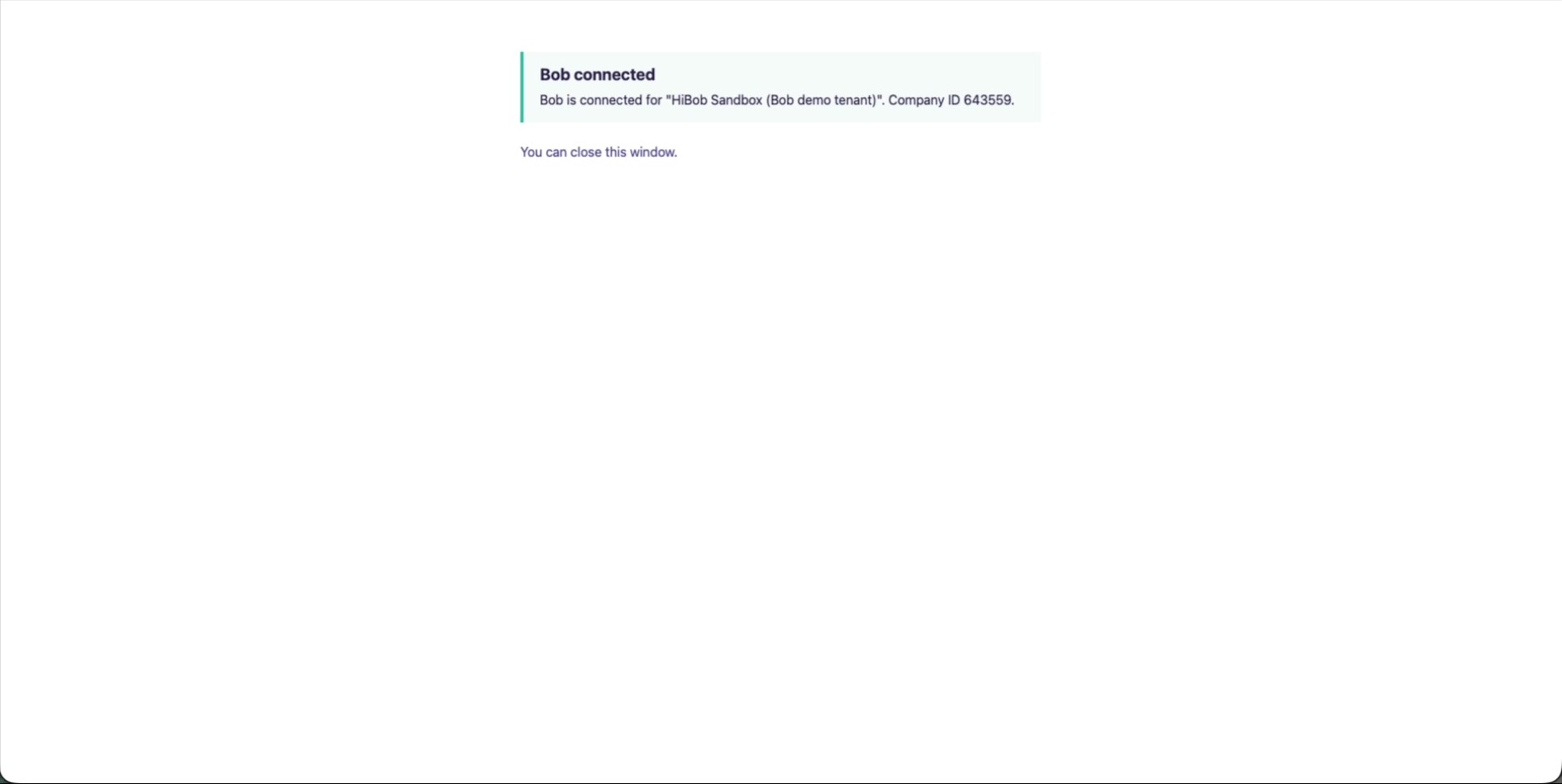
- 3Review the access request and select Authorize in Bob.
- 4Confirm you see the connection success message, then tell PSBI that Bob shows the app as installed.
Create the three employee custom fields
- 1Go to Settings → Data management → People's data fields.
- 2Open the Work category and select New field.
- 3Create each of the three fields below, using these names exactly.
- 4On Compliance Status, open Manage list and add the six status values.
- 5Save, then tell PSBI the fields exist. PSBI retrieves the field IDs — you do not need to send them.
| Field name | Bob field type | What it is used for |
|---|---|---|
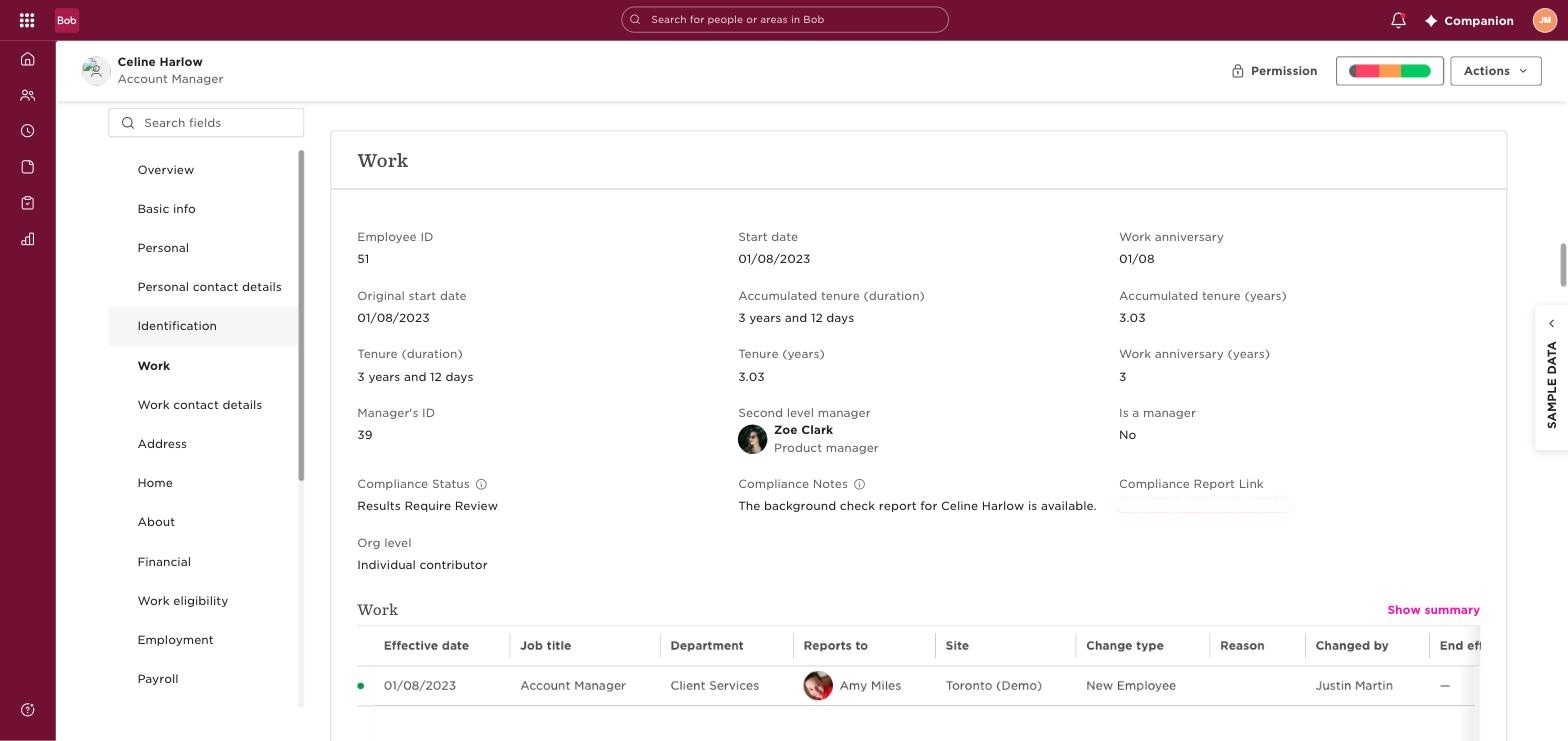
| Compliance Status | List | Starts screening when set to Enrollment Initiated, then shows the current state. |
| Compliance Notes | Text area | A plain-language update written by PSBI beside the status. |
| Compliance Report | Text | An authorized link to the PSBI record for status, review, or the finished report. |
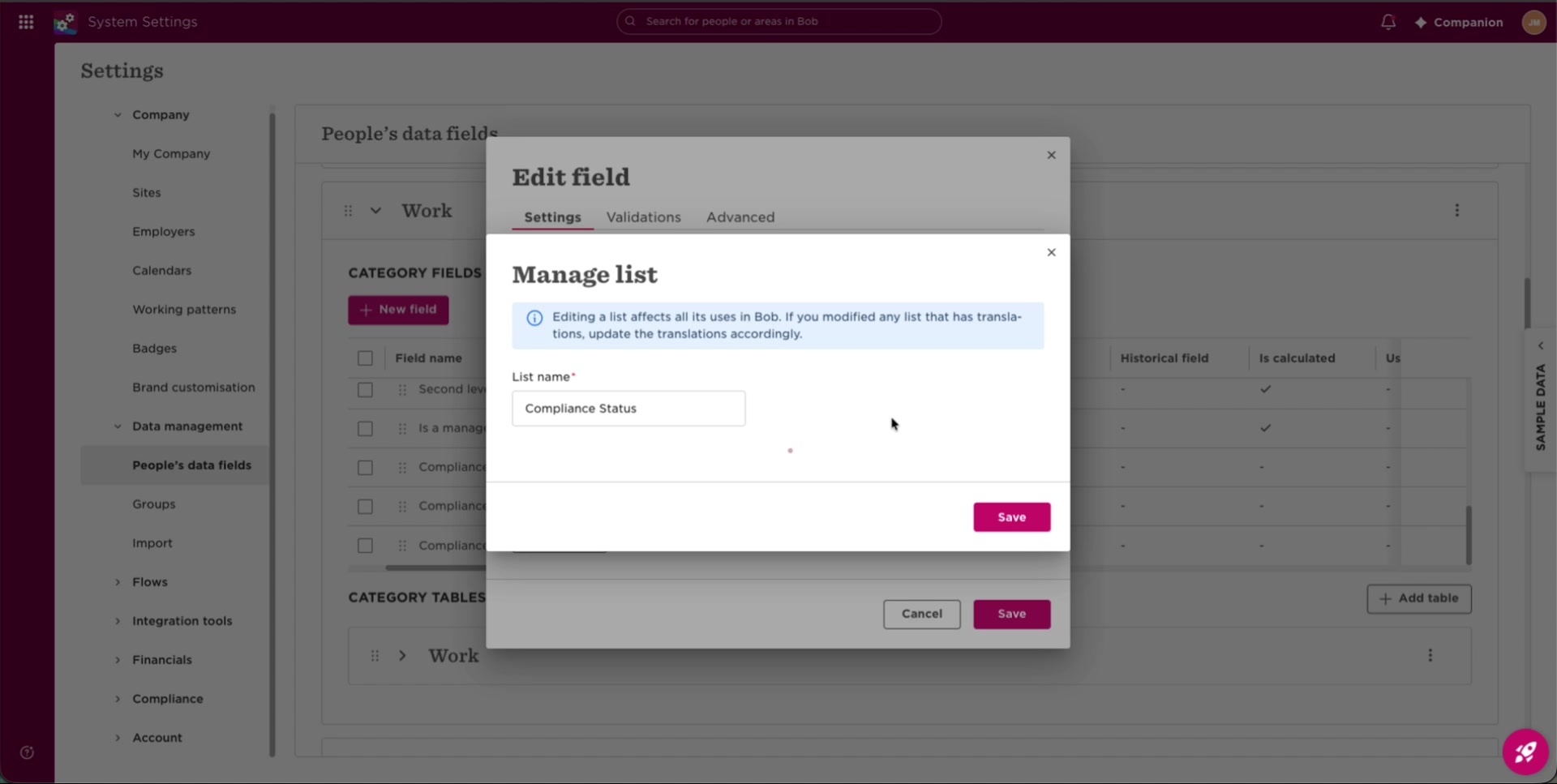
Add these six values to the Compliance Status list:
Confirm your Job Family routing
- 1List the Job Families that will use the integration.
- 2For each one, tell your PSBI onboarding specialist which checks that role requires.
- 3Ask PSBI to confirm the mapping is complete before you run the test.
Start one test request
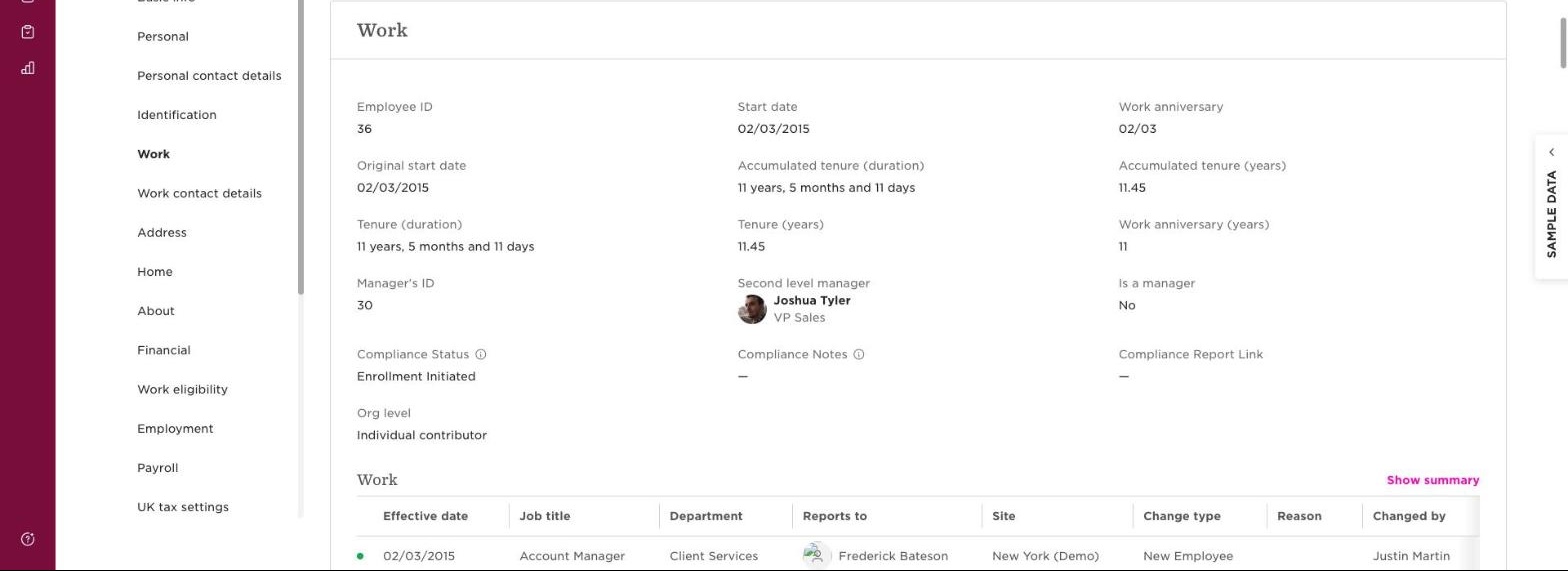
- 1Open your test employee's record and go to the Work tab.
- 2Check that the employee has the intended Job Family and a valid individual work email.
- 3Set Compliance Status to Enrollment Initiated and save.
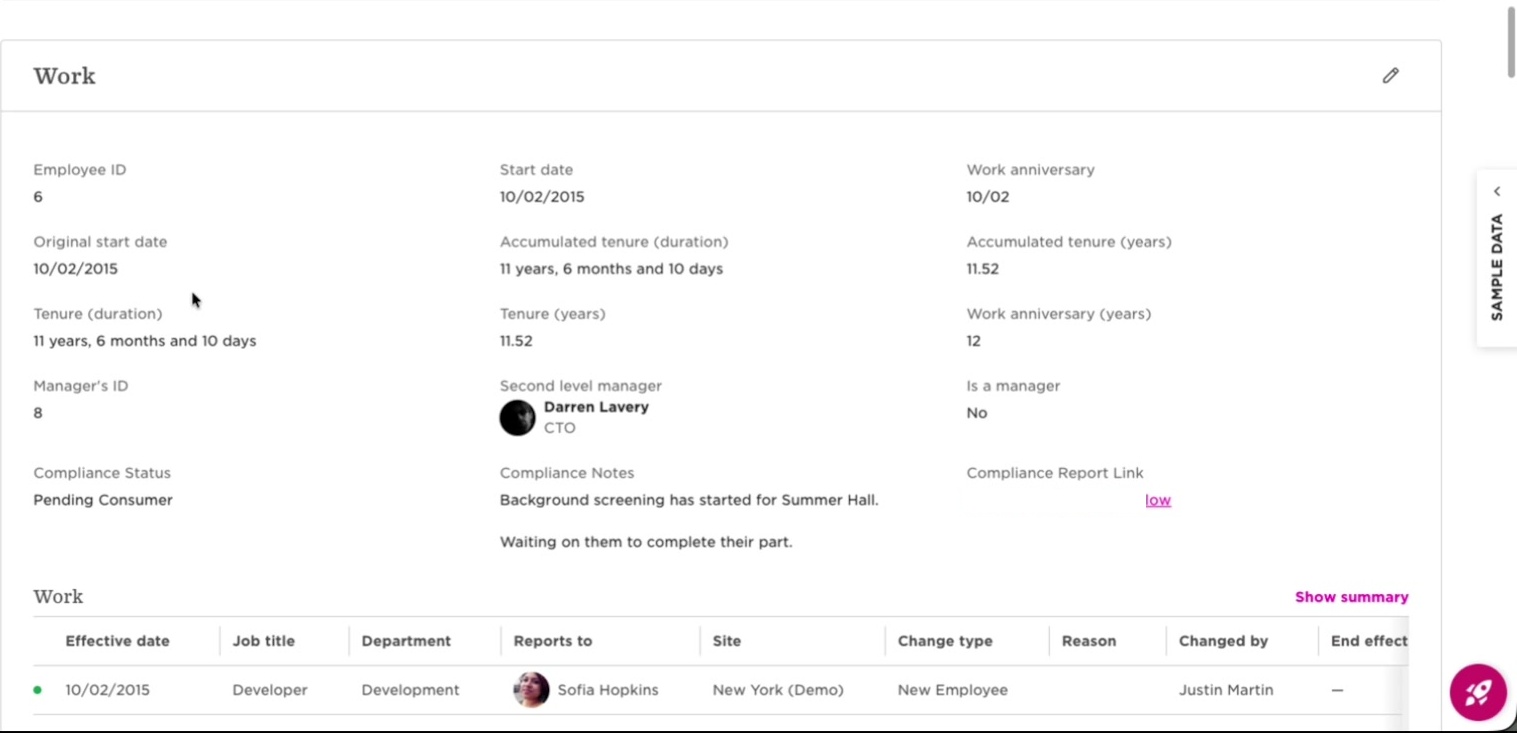
- 4Within a few moments the status should change to Pending Consumer and the employee receives their invitation.
Complete the review and confirm writeback
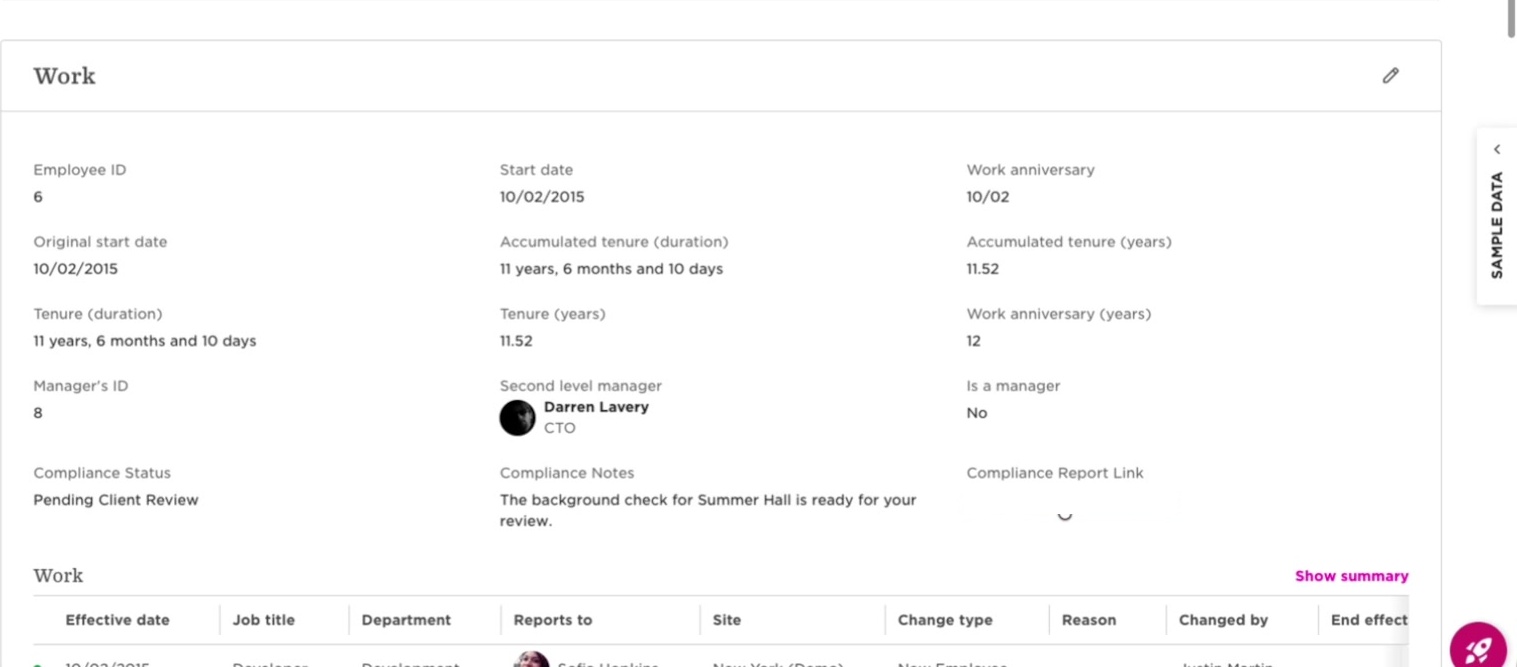
- 1When the employee finishes their part, your reviewer receives an email and Bob shows Pending Client Review.
- 2Open the link in Compliance Report on the employee record.
- 3Check the submitted information, the requirements selected, and the pricing, then submit the order.
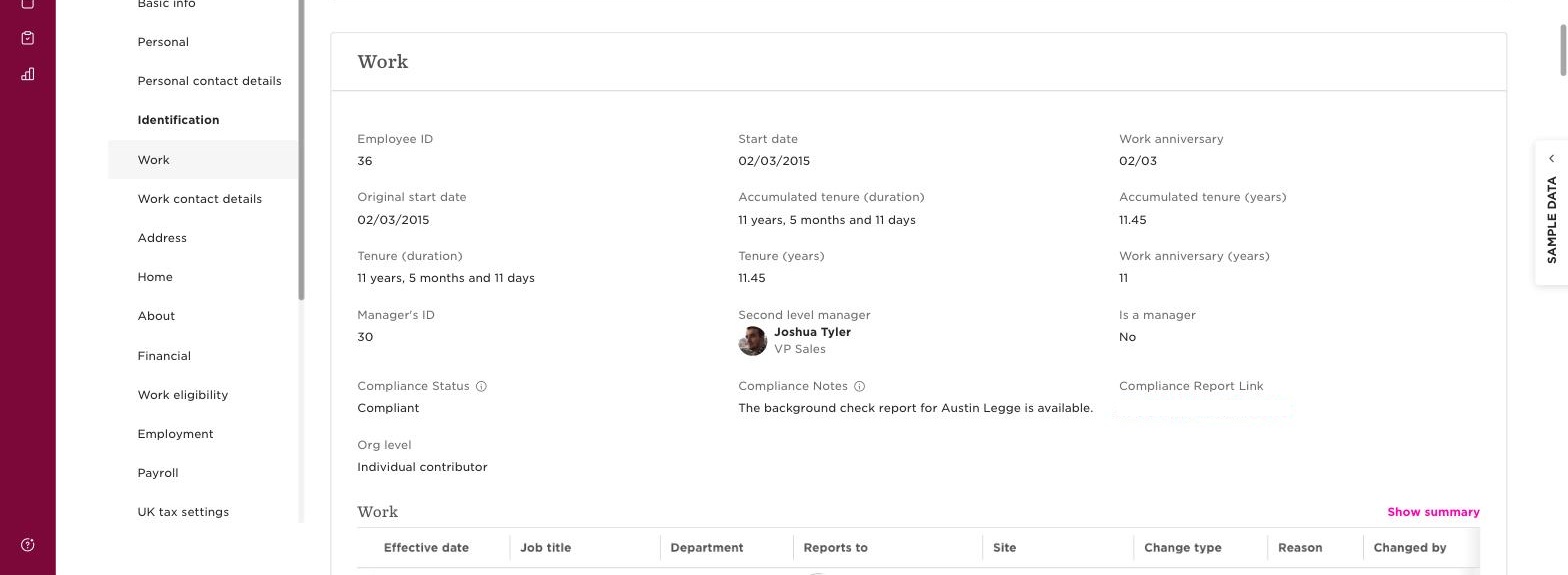
- 4Bob updates to Processing, and to Compliant when PSBI finishes.
Validation
Validate before launch
Run these checks with your PSBI implementation lead using the test employee. Do not go live until the full path works once.
Once it is running
An authorized user opens the employee in Bob, sets Compliance Status to Enrollment Initiated, and saves. Nothing further is required until the order is ready for review. The reviewer receives an email, opens the link from the record, and submits. The status and note on the record stay current throughout.
Data sync
| When | Direction | What moves |
|---|---|---|
| You save Enrollment Initiated | Bob → PSBI | Bob sends an employee-update event. PSBI acts only on records where Compliance Status changed to Enrollment Initiated. |
| Request is created | Bob → PSBI | The employee's identity and contact details, and their Job Family, which selects the screening requirements. |
| Employee is invited | PSBI → Bob | Compliance Status becomes Pending Consumer, with a note and a link. |
| Employee completes intake | PSBI → Bob | Compliance Status becomes Pending Client Review. Your reviewer is emailed. |
| Order is submitted | PSBI → Bob | Compliance Status becomes Processing. |
| Screening completes | PSBI → Bob | Compliance Status becomes Compliant or Results Require Review, with the report link. |
| App is uninstalled in Bob | Bob → PSBI | Bob revokes PSBI's access. PSBI detects this on its next call, deactivates the connection, and stops writing to Bob. |
Troubleshooting
The status stayed on Enrollment Initiated and nothing happened.
Check that the value was saved on the Compliance Status field, that the employee has a mapped Job Family, and that they have an individual work email. Send PSBI the employee's Bob ID and roughly when you saved the change. Do not set the field again.
The wrong checks were ordered.
Stop before submitting the order. Confirm the employee's Job Family in Bob against the mapping PSBI configured. A Job Family that was added or renamed after onboarding has to be mapped before use.
Bob shows no status, note, or link.
Confirm all three custom fields still exist with their original types. If a field was deleted and recreated, its ID changed and PSBI needs to remap the connection.
The employee says they never received the invitation.
Check the work email on the Bob record is individual and correct, and have them check spam. If the address was wrong, correct it in Bob and contact PSBI rather than starting a second request.
Statuses stopped updating after someone changed the app in Bob.
If the app was uninstalled or its authorization revoked, PSBI deactivates the connection and stops writeback. Contact PSBI to reinstall through your existing connection — reinstalling the same tenant reactivates it rather than creating a duplicate.
A check needs to be cancelled.
Contact PSBI. Changing the Compliance Status value in Bob does not cancel work already in progress.
Need a hand?
Contact your PSBI implementation lead. Include:
- The employee's Bob ID and Job Family
- The status you expected and the status you see
- Roughly when the change was saved
Do not send intake responses, report contents, or other screening information by email.